Step-by-Step Walkthrough
1. Locate the Group with Lesson Folder Access
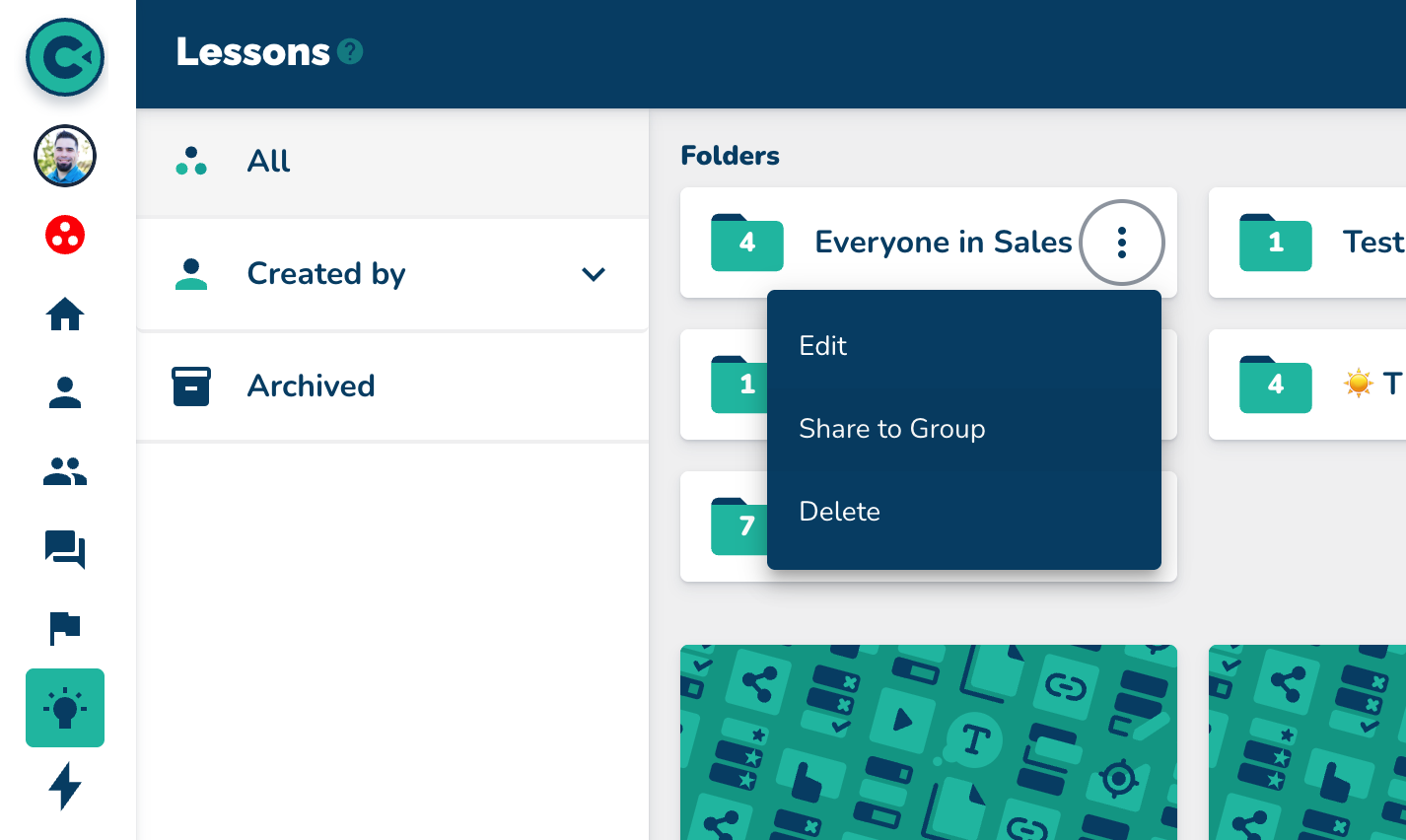
Navigate to the Lessons page.
Locate the shared lesson folder.
Click the three dots on the lesson folder card.
Select "Share to group."
Note which group the folder is shared with.
Navigate to the Groups page.
2. Remove the Single Contact

Open the group that has access to the lesson folder.
Add a filter to remove the specific contact (e.g., Leslie).
Choose the email field as the filter.
Set the filter to “email has none of” and enter the contact’s email.
Optionally, you can add more emails to exclude other contacts.Save the group.
3. Confirm the Changes
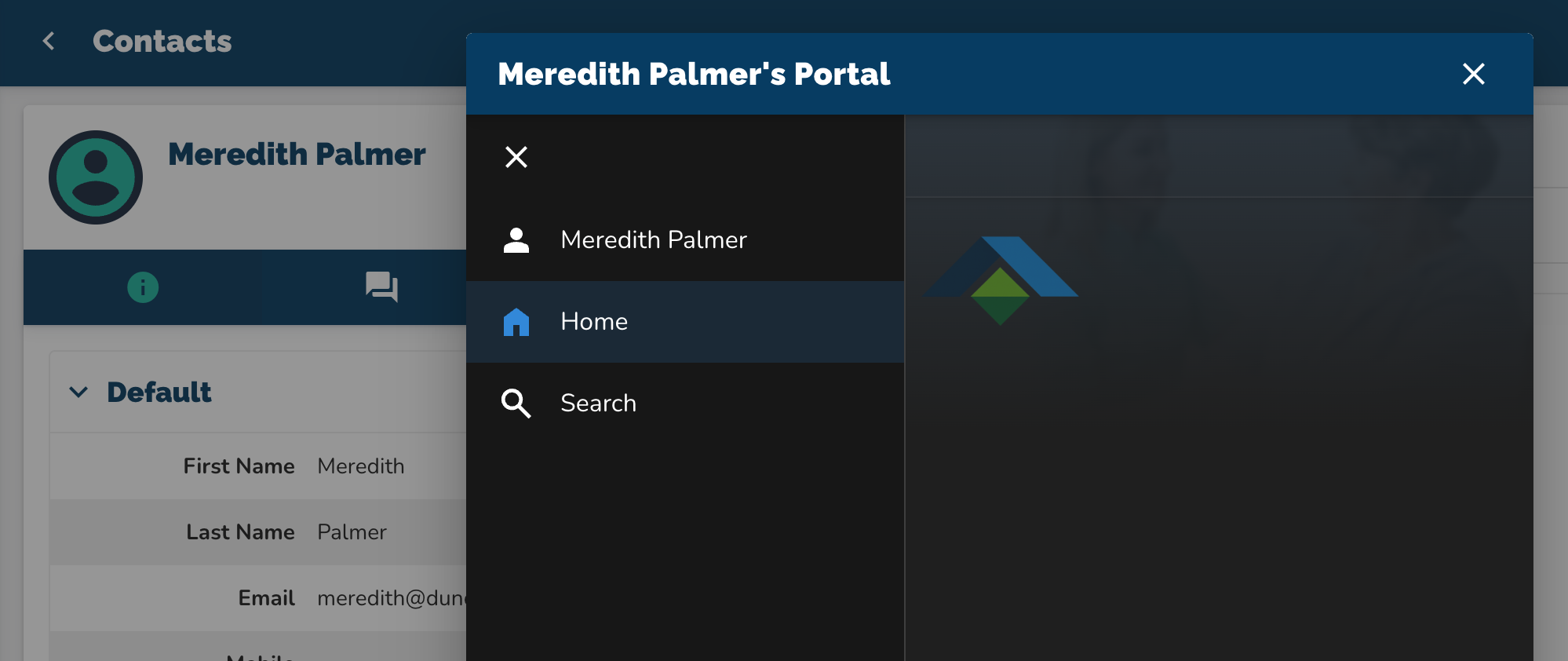
Navigate to the Contacts page.
Open the portal view for the removed contact.
Confirm the Lessons tab and folder are no longer visible.
Open the portal for another contact still in the group to confirm they still have access.