Lesson Cards
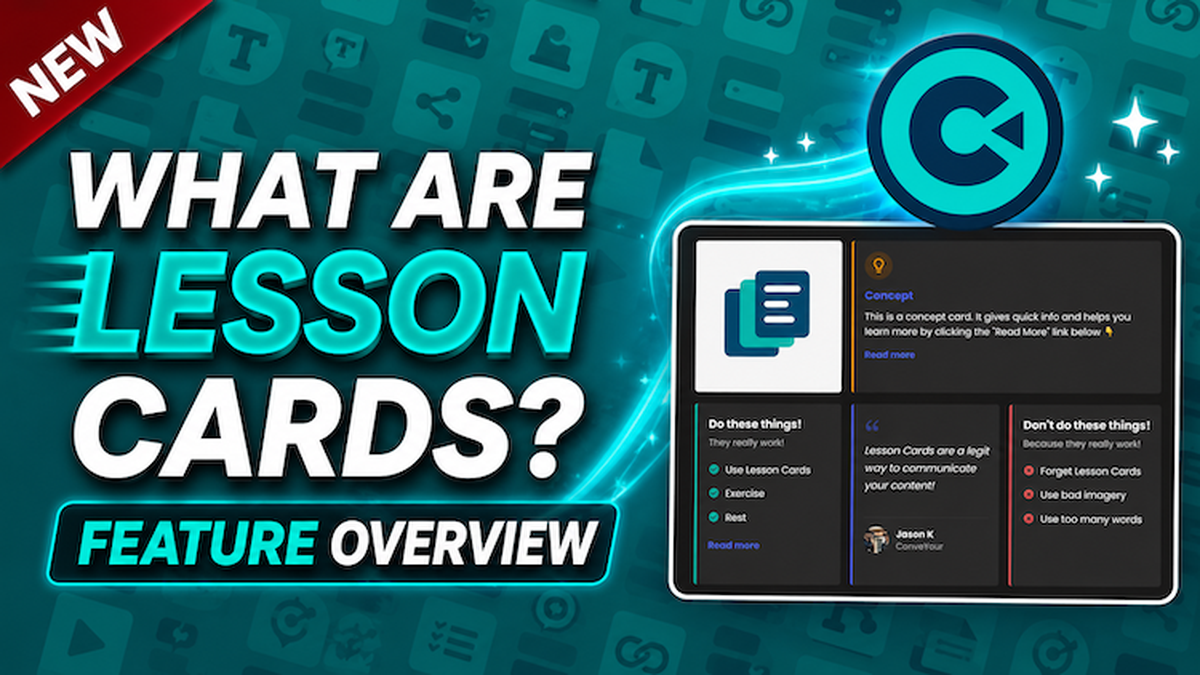
Lesson Cards help you share information in a clean, simple, and easy-to-read way.
Instead of showing a long page of text, Lesson Cards break your content into smaller cards. Each card can show an image, idea, list, question, quote, or extra details. This helps learners, reps, recruits, or team members understand the lesson faster.
What Lesson Cards Do
Lesson Cards let you:
Show content in a neat card layout
Add images, short text, lists, questions, and quotes
Use a “Read More” button for extra details
Make lessons easier to scan
Help learners focus on the most important information first
Lesson Cards are great for introductions, training lessons, hiring information, company overviews, checklists, and short learning guides.
Where to Find Lesson Cards
Go to Lessons.
Create or open a lesson.
Go to Lesson Items.
Look under Presentation.
Choose Lesson Card.
You can also click the question mark on the Lesson Card item to watch a help video.
Lesson Card Types
You can add up to six cards in one Lesson Card item.
Common card types include:
Image Card: Shows an image with optional text.
Concept Card: Shares a short idea or explanation.
Do List: Shows things people should do.
Don’t List: Shows things people should avoid.
Question List: Shows questions that will be answered in the lesson.
Quote Card: Shares a quote or testimonial to build trust.
How to Add Lesson Cards
Add a Lesson Card item to your lesson.
Choose the card templates you want.
Click a card to edit it.
Add the title, text, image, list items, or quote.
Click Save.
Click Test to preview how learners will see it.
How Card Width Works
Lesson Cards use columns on larger screens.
On a phone, cards show in one column.
On a tablet or computer, cards can show in three columns.
You can choose if a card should be:
One-third width: Takes one column.
Two-thirds width: Takes two columns.
Full width: Takes the whole row.
How to Add an Image Card
Click the Image card.
Add an image.
Add a title overlay if needed.
Choose the card width.
Add expanded content if you want a Read More button.
Click Save.
Click Test to preview it.
How to Add a Concept Card
A Concept Card gives a quick piece of information.
Click the Concept card.
Add a title.
Add a short body or description.
Add expanded content if you want more details.
Click Save.
Click Test.
If you add expanded content, learners will see a Read More button.
How to Add Expanded Content
Expanded content is extra information learners can open by clicking Read More.
Open the card you want to edit.
Find the Expanded Content area.
Type the extra information.
Use Markdown if you want headings, bold text, links, images, or bullet lists.
Click Save.
Click Test.
Click Read More to view the extra content.
How to Add a Do List
A Do List tells learners what actions to take.
Click the Do List card.
Add a title.
Add a subtitle if needed.
Type the first item.
Press Enter to add another item.
Keep adding items.
Click Save.
Click Test.
How to Add a Don’t List
A Don’t List works like a Do List, but it shows things learners should avoid.
Click the Don’t List card.
Add a title.
Add a subtitle if needed.
Type each item.
Press Enter to add more items.
Click Save.
Click Test.
How to Add a Question List
A Question List is helpful at the start of a lesson.
Use it to show what the lesson will answer.
Click the Question List card.
Add the questions learners should think about.
Press Enter to add more questions.
Click Save.
Click Test.
How to Add a Quote Card
A Quote Card can help build trust.
Use it for a testimonial, leader quote, customer quote, or company value.
Click the Quote card.
Add the quote.
Add the person’s name or details if needed.
Click Save.
Click Test.
Using Markdown in Expanded Content
Markdown helps you format text. Here's a site that explains how to use Markdown.
You can use it to add:
Headings
Bold text
Italic text
Links
Images
Bullet lists
Examples:
Heading 1
Heading 2
Heading 3
Bold text
Bold and italic text
Bullet item one
Bullet item two
Bullet item three
How to Copy and Paste a Card
You can copy card content to save time.
Open a card you already made.
Copy the card content.
Open another card.
Paste the content.
Make any needed changes.
Click Save.
Click Test.
Best Ways to Use Lesson Cards
Use Lesson Cards when you want the lesson to feel simple and organized.
They work well for:
Getting started guides
Company introductions
Hiring or recruiting pages
Training steps
Do and don’t lists
Frequently asked questions
Testimonials
Lesson summaries
Tips for Better Lesson Cards
Keep each card short. Put only the most important information on the main card.
Use Read More when you need to explain more.
Use images to make the lesson feel more friendly.
Use Do Lists and Don’t Lists when learners need clear instructions.
Use Quote Cards when you want to build trust.
Need Help?
If you have questions, use the help icon in ConveYour. You can watch videos, ask Cy, read help documents, or contact support.