Lesson Items

Button

Add a button within your ConveYour lesson to make an external link prominent and clear.

Button

What Is the Button Lesson Item?

The Button lesson item allows you to add a prominent call-to-action (CTA) within a lesson, directing learners to an external link.

This is ideal for:

  • Highlighting key external resources.

  • Encouraging learners to explore additional content.

  • Providing a clear and clickable action for engagement.

How to Add a Button to a Lesson

Step 1: Add the Button Lesson Item

  • Drag the Button Lesson item into the Lesson Builder.

Step 2: Configure the Button

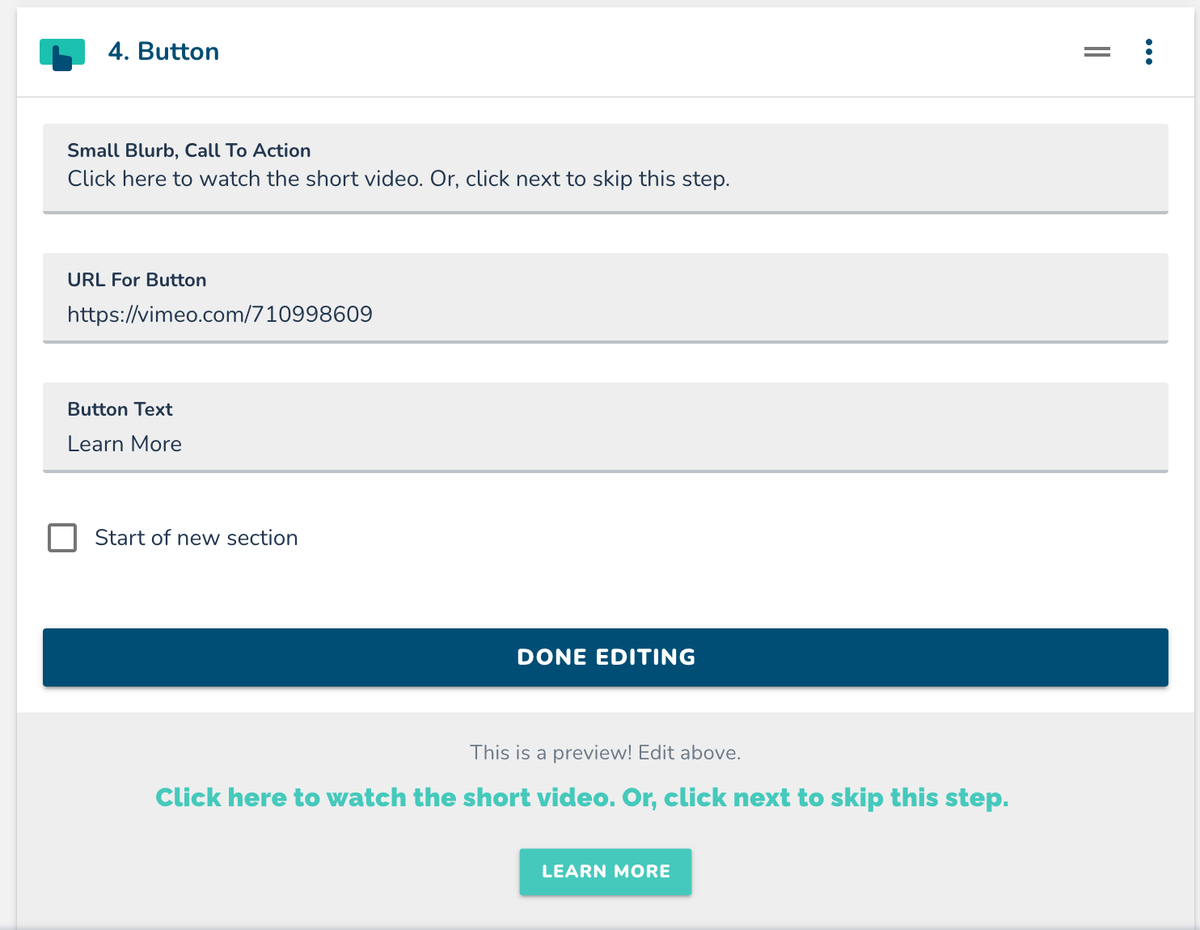
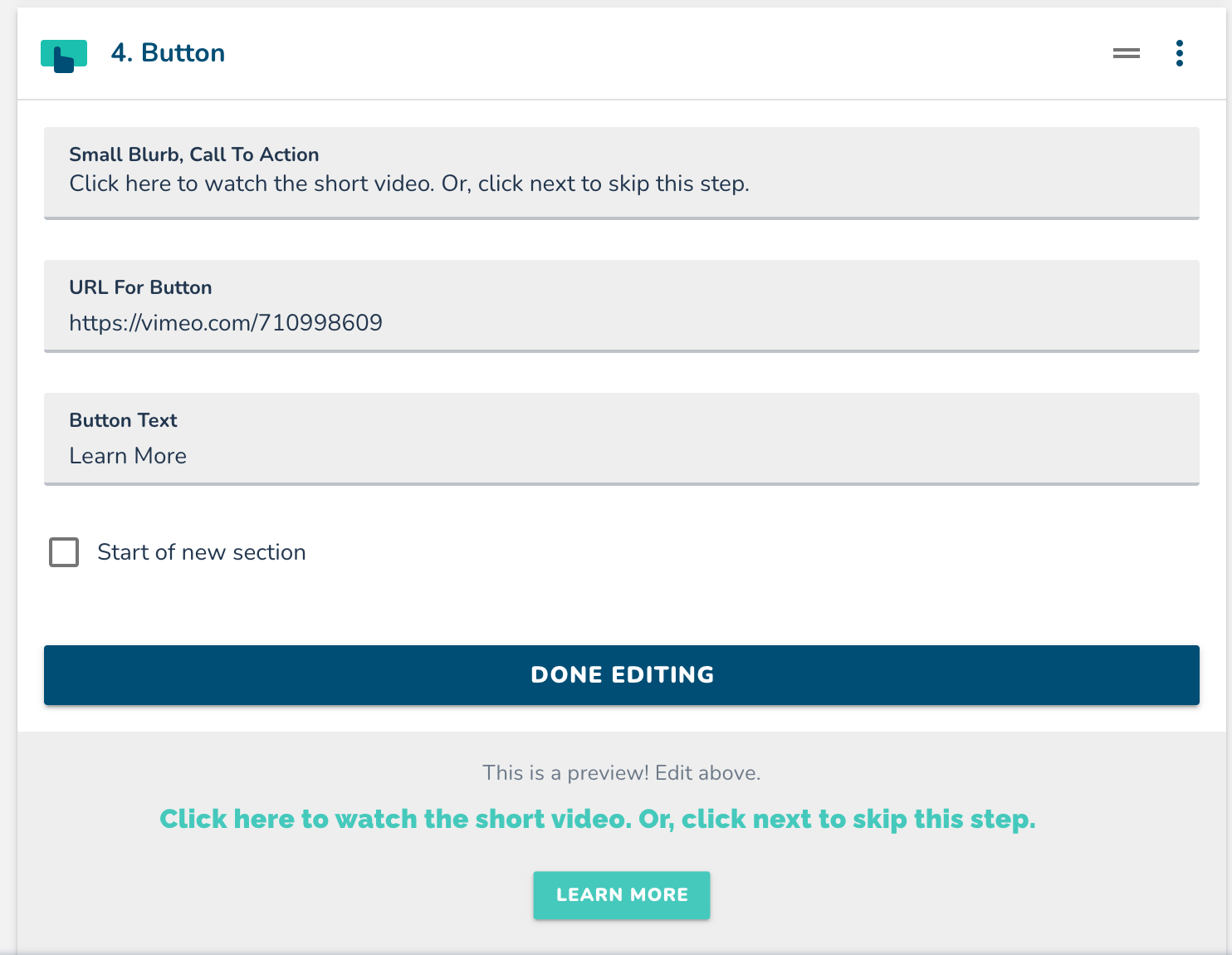
  • Enter a Call to Action (CTA): Choose text that clearly tells learners what to do (e.g., "Learn More," "Get Started," "View Resource").

  • Paste the Destination URL: Copy and paste the web page link where the button should direct learners.

Step 3: Save and Test

  • Click Done Editing to finalize the button.

  • Test the button to ensure it correctly links to the intended page.
More in Lesson Items

What are Lesson Cards?

Lesson Items

What are Lesson Cards?

Learn how Lesson Cards turn ordinary content into engaging, easy-to-follow learning experiences. Discover the different card types, when to use them, and how to build professional-looking lessons in minutes.

Calendly

Lesson Items

Calendly

The ConveYour Calendly widget allows your contacts, reps, employees, or learners in your course book time with you using the embedded Calendly app.

Typeform

Lesson Items

Typeform

Using the Typeform integration to include short surveys or questionnaires in ConveYour Lessons

Update Learner Profile

Lesson Items

Update Learner Profile

How the Update Learner Profile lesson item works in ConveYour