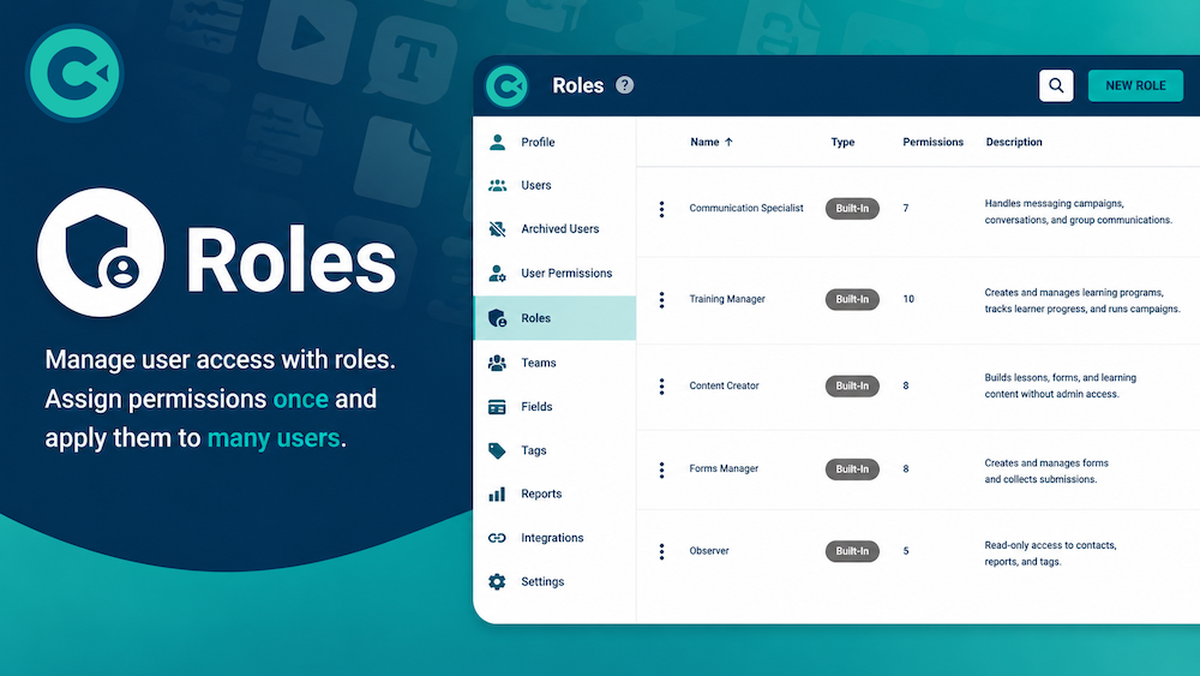
Roles
What Are Roles?
Roles make it easier to manage what users can do in ConveYour.
Instead of setting permissions one user at a time, you can create a role and assign it to multiple users. Each role contains a set of permissions that control which features a user can access.
Roles are based on a common security method called Role-Based Access Control (RBAC).
Why Use Roles?
Roles help you:
Simplify permission management for groups of users.
Organize users based on their responsibilities.
Give users access to only the tools they need.
Improve security by controlling access to features.
Prepare for Single Sign-On (SSO) integrations with identity providers such as Google or Okta.
Built-In Roles
ConveYour includes several built-in roles to help you get started.
Examples include:
Communication Specialist
Training Manager
These built-in roles provide recommended permission sets for common job functions.
Note: Built-in roles cannot be deleted.
Create a New Role
To create a custom role:
Go to Roles.
Click New Role.
Select the permissions you want users in this role to have.
Enter a name for the role.
Click Create.
Your new role is now available to assign to users.
Assign a Role to a User
Roles can be assigned to guest users.
To assign a role:
Go to Users.
Open the user's profile.
Select User Permissions.
Choose one or more roles.
Click Save.
Once a role is assigned, the user's permissions are controlled by the role instead of individual permission settings.
Multiple Roles
A user can have more than one role.
For example, a user could be both:
Forms Manager
Training Manager
When multiple roles are assigned, ConveYour combines the permissions from all assigned roles.
Edit a Role
You can update a role at any time.
When you save changes to a role:
All users assigned to that role will receive the updated permissions.
ConveYour will show you which users will be affected before you save.
This helps you understand the impact of your changes.
Delete a Role
You cannot delete a role if users are currently assigned to it.
This safeguard helps prevent accidentally removing permissions from active users.
Before deleting a role, remove the role from all assigned users.
How Roles Work
When a user performs an action, ConveYour:
Checks the user's assigned roles.
Collects the permissions from those roles.
Determines whether the user has access to the requested feature.
This process happens automatically each time access is checked.
Audit Logs
Role changes are recorded in Audit Logs.
Audit Logs help administrators review changes made to roles and user access settings.
Best Practices
Create roles based on job responsibilities.
Assign roles instead of managing permissions one user at a time.
Review role permissions regularly.
Use multiple roles when users need responsibilities from different teams.
Follow the principle of giving users only the access they need.
Summary
Roles provide a simple way to manage permissions for groups of users. They help organize users, improve security, and make it easier to manage access across your organization. Roles also support future integration with identity providers and Single Sign-On (SSO) systems.