What Are Email Alerts?
Email alerts allow you to automatically notify yourself or your team when a contact meets a specific condition. This is different from sending a standard email—alerts are triggered based on specific criteria you define.
Use Cases
Immediate Assistance: Notify your team when a contact answers "I need help now!" in a poll.
Performance Monitoring: Alert managers when a sales rep records low results.
Automated Referrals: Email local service providers when new contacts are added, matching their state.
How to Set Up an Email Alert
Step 1: Create a New Email Notification Automation
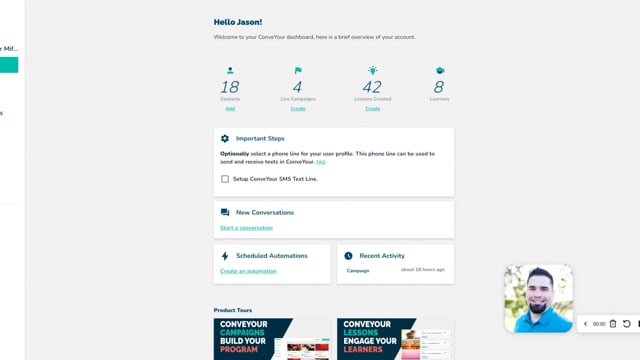
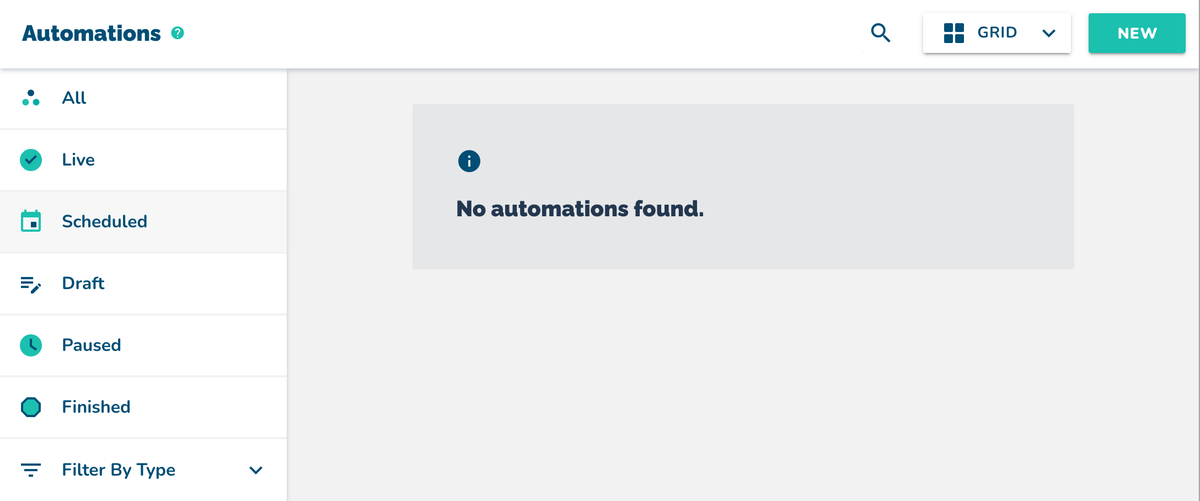
Navigate to Automations and select New (top right).

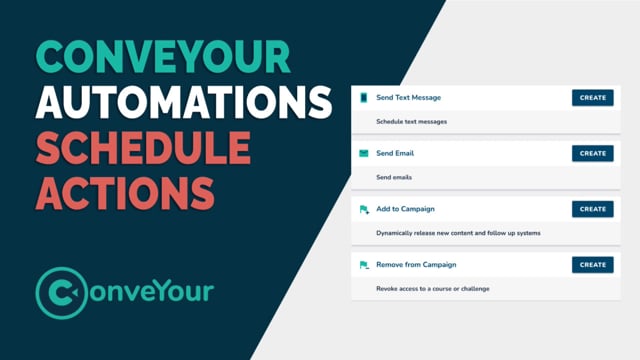
Choose Email Notification and click Create.

Step 2: Set Up the Trigger Condition
Email alerts are sent when a contact joins a specific group based on predefined conditions.
You will need to create a group in anticipation of contacts meeting certain criteria.

Example: HR Alert for New Hires
If you want to notify HR when a new team member is added:
Ensure a custom field exists in your contact list for Hire Date (data type: Date).

Create a New Hires group based on the condition:
Hire Date → Less than 3 days ago.

In the automation, select this New Hires group as the trigger.

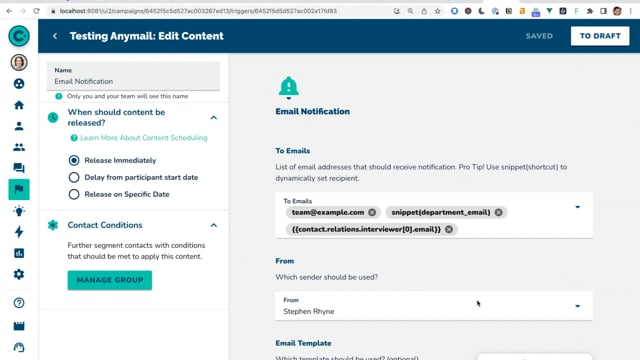
Step 3: Specify Recipients
Enter the email addresses of the people who should receive the notification (e.g., HR team).
Multiple email addresses can be added, separated by commas.
Step 4: Customize the Email Message
Select the sender email for the notification.
Compose the email message to inform the recipient about the new hire or other triggered event.

Step 5: Review and Launch
Confirm that the correct group and recipients are selected.
Ensure the message is accurate and provides clear next steps.
Click Launch to activate the alert.
Related Reads
-Creating Custom Contact Fields in Settings
-Automations for Groups and Adaptive Learning