Forms is ConveYour’s built-in form builder, designed to help you collect structured information from contacts. Common use cases include agreements, permits, acknowledgments, confirmations, and internal data collection.
Forms can also be used to sign, send, and manage legally binding documents, allowing you to replace costly eSigning services.
With Forms, Admin users can organize submissions, track completion status, and standardize data collection across teams.
Access Control:
As an Admin, you can restrict guest users from viewing or accessing the Forms feature.
Important Note: Add-On Feature
Forms is an add-on feature and may not be enabled on all accounts.
To enable Forms or learn more about pricing and availability, please contact our support team:
Use the in-app chat
Or email [email protected]
How to Navigate to Forms
Click the More icon in the main navigation
Select Forms
This will take you to the Forms dashboard where you can manage collections and forms.
How to Create a Form Collection
Form Collections act like folders and help you organize related forms.
Click New Collection
Enter a name for the collection and save
Example: Permits or Acknowledgments
(Optional) Similar to Custom Objects, you can create preset fields
These fields appear as columns in the forms table for easy tracking
Save the collection
Click into the collection you just created
How to Create a Form
Inside a form collection, click New Form (top-right)
Enter a Form Name, click Save, then open the form
Click Edit Fields to begin building the form
Click New Section and enter a section name
Sections help organize fields for better readability
Within a section, click Add Field
Configure the field:
Field Title
Field Name
Field Type
Validation settings (Required or Optional)
Click Save in the bottom corner of the window
Repeat as needed to complete your form
Submitting a Form to Contacts
You can assign a form to a contact from the Forms Tool, OR in a lesson:
From the Forms Tool
Open the form
Click New Submission
Search for and select the contact
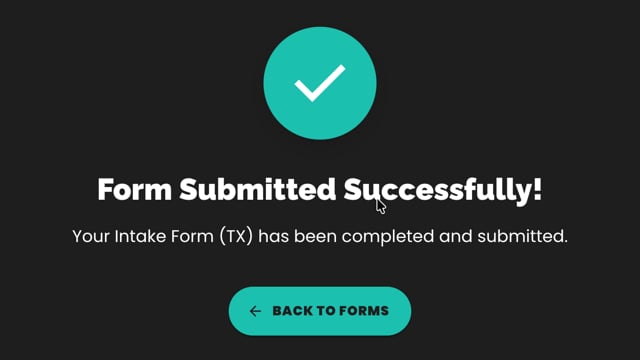
The contact will appear below with a Status set to Pending
To manually mark the form as complete:
Click the contact’s Status
Select Completed
Click Save
This allows you to track which contacts have completed or acknowledged a form.
From a Lesson
Navigate to Lessons
Create a New Lesson or Select an Existing Lesson
In the Lesson, navigate to the "Data Collection" tab
Select "Add Form"
In the "Add Form" lesson item, pick your existing form
Set your conditions and Save