
How to Merge Contacts
Merging contacts allows you to combine duplicate profiles while keeping the most accurate and relevant information. This process ensures you have a single, clean record for each contact.
Step-by-Step Instructions
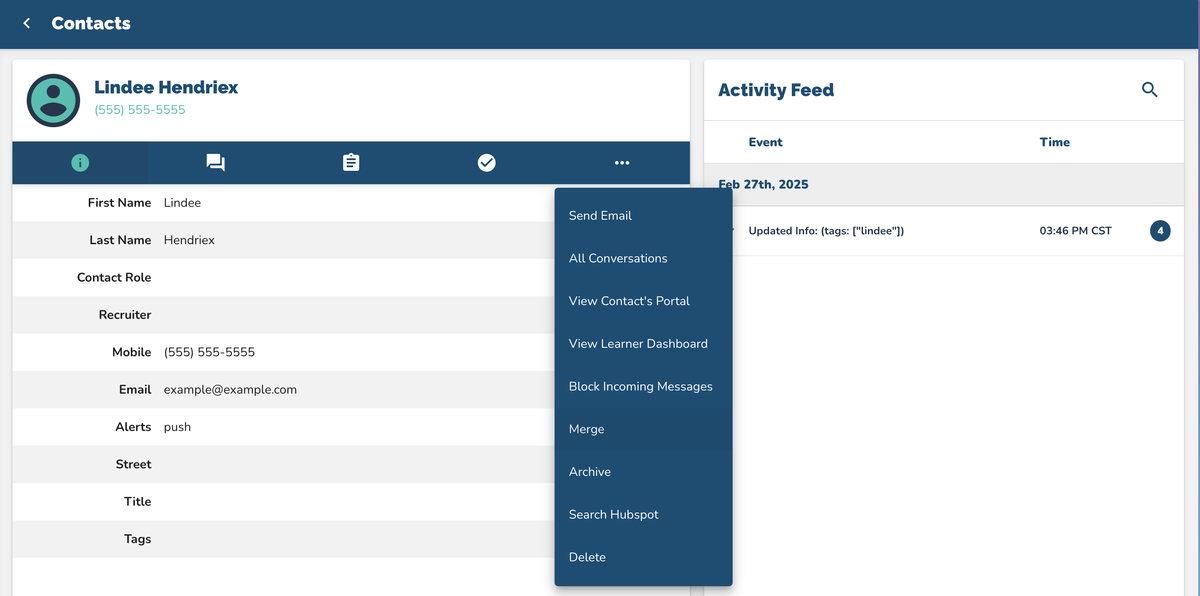
Open the Contact Profile
Go to the profile of the contact you would like to merge.Access Contact Actions
Click on the three dots in the top right corner of their profile to open the Contact Actions dropdown menu.Select Merge
From the dropdown, click Merge.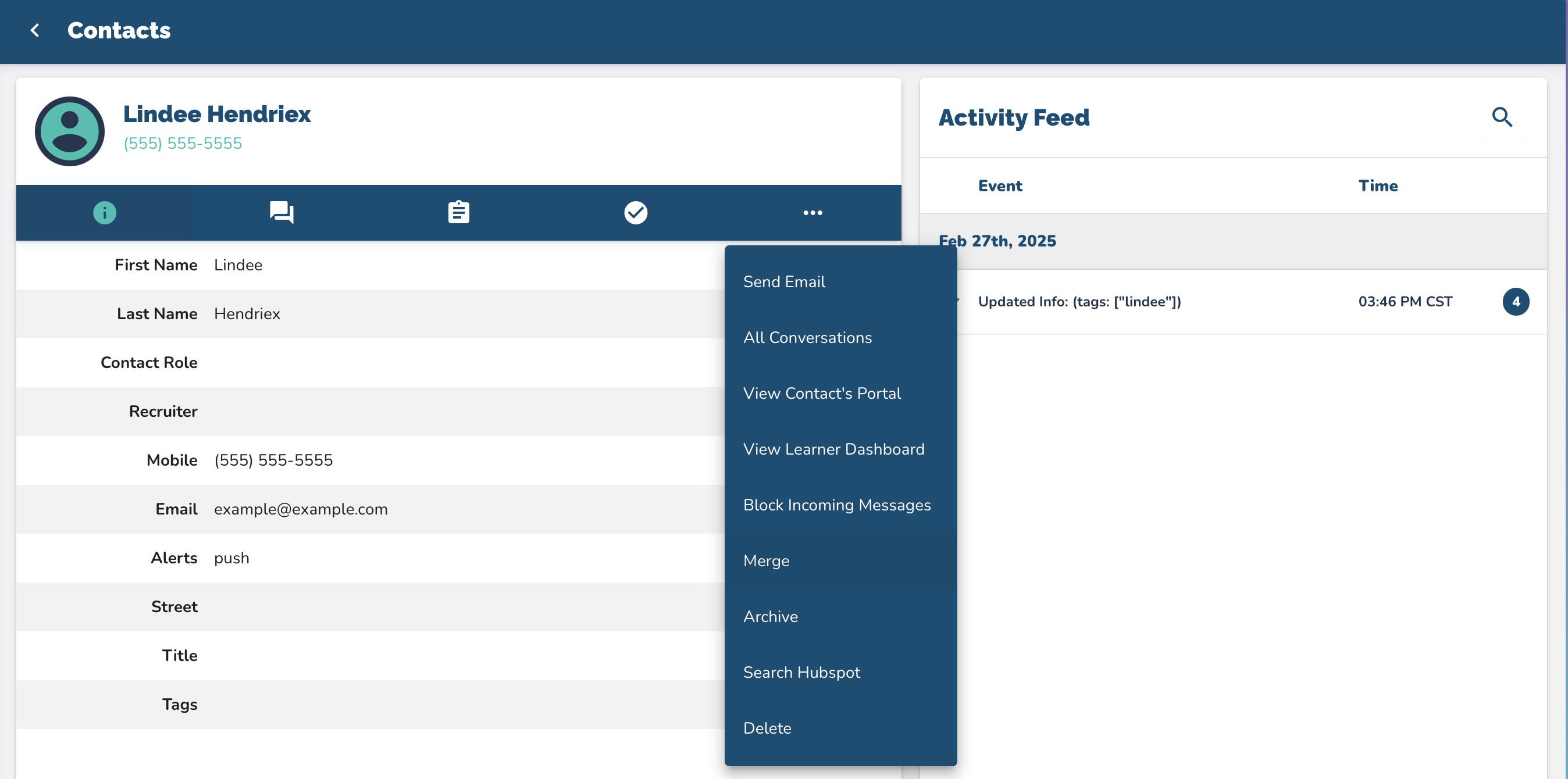
Search for the Contact to Merge
Use the search bar to find the other contact record you want to merge with.Note: The contact shown on the left will be the Kept Contact. Their mobile number, email, name, and other key details will remain after the merge.
Review Information
Carefully review the details to confirm which information will be kept after the merge.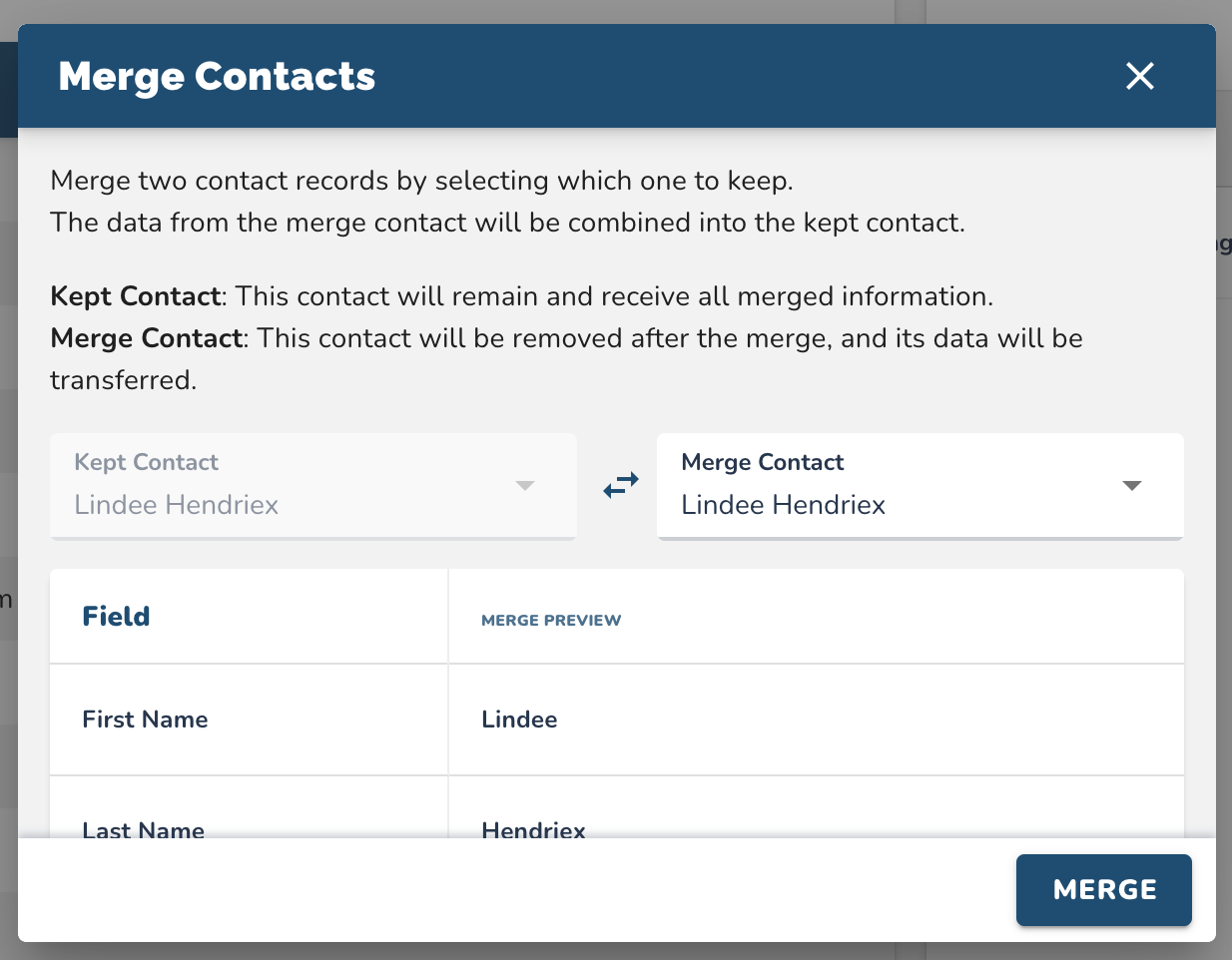
Confirm the Merge
Click Merge, then select Confirm to finalize the process.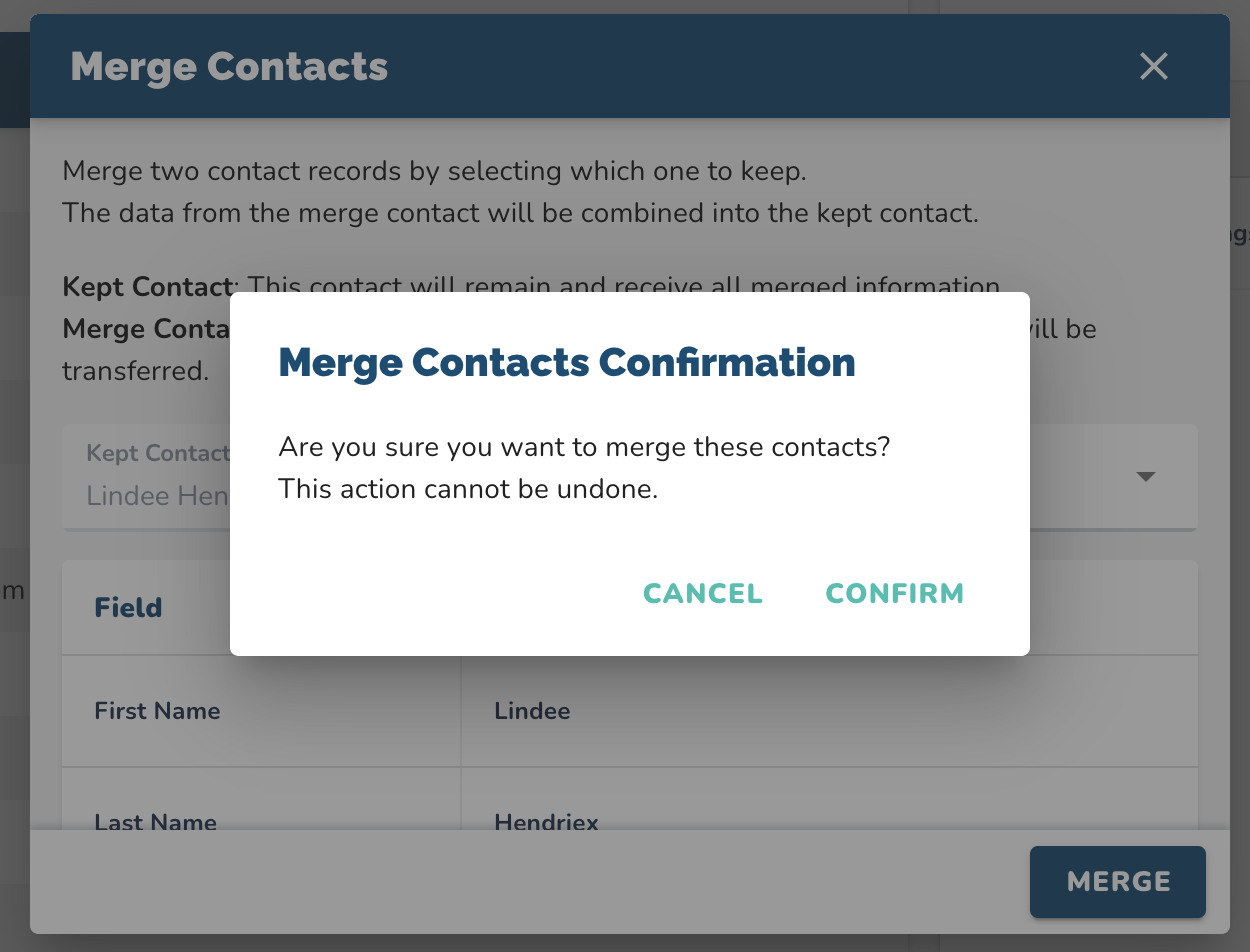
Important Details
Kept Contact: This is the record that will remain after the merge. It will retain its core details and gain any missing information from the merged contact.
Merge Contact: This record will be removed after the merge. Any data it contains will be transferred to the Kept Contact.
Example:
If Contact A (Kept) has a phone number and Contact B (Merge) does not, the phone number will remain. If Contact B has a company name and Contact A does not, that company name will be added to Contact A’s record.